Today mobile phones are a necessity in one’s life. We talk much on phone and the battery of the phone gets used up. So we always find the means to save the battery of the phone so that we can talk as much as possible. To fulfill this need of user, mobile phone now come up with batteries with longer talktime backup and those which last for years if used according to some useful instruction.
Today we use many applications and programs which consume the mobile battery at a faster rate. Our bad habits of avoiding switching off the mobiles phones when not in use especially at night consume more battery. The new phones with greater megapixels also consume a lot of battery power. Here we will discuss some of the steps to increase your mobile phone battery life:
• Turn off your mobile: Turning off mobile handsets is one of the most effective measures to save the battery power. You can turn off your mobile during the time you go to bed or when you attend a meeting. Turning off your mobile phone when no connectivity is available also plays a vital role in saving your battery power.
• Turn off the connectivity means: Turning off connectivity means like Wi-Fi, Bluetooth and infrared also save a major part of your battery power.
• Switch off the vibrate function: Vibrate alert function in mobile phones consumes a lot of battery power. So switch off the vibrate alert function of your phone.
• Reduce the screen brightness: More the brightness of your phone more is the power consumed, so keep the brightness level of your phone to a minimum level. Also set the display time out as low as possible.
• Avoid screensavers: To save battery power, avoid the use of screensavers on your mobile and use of simple wallpapers will be more beneficial.
• Terminate Applications: Termination of applications of your mobile phone when not in use also saves a lot of battery power
• Recharge your battery: It is good to recharge your phone properly and recharge the battery when three fourth of the battery has been used up.
• Avoid heating: Keep your mobile phone cool. Keep it off from direct exposure to sun or any heating appliance. The preferable range at which the battery works fine is 10-35 Centigrade.
• Avoid flash: Avoid flash light during photography also save a major portion of battery power. Flash light consume a lot of power, to turn off the flash in day.
Read more: http://www.mobiletipstricks.com/category/mobile-hacks/#ixzz0PA9arDYx
Showing posts with label Tips. Show all posts
Showing posts with label Tips. Show all posts
Monday, August 24, 2009

Thursday, August 6, 2009
Cannot delete file
You probably sometimes try delete file and suddenly appear message like this:cannot delete file, access is denied, the source or destination file may be in use and etc. Don´t worry, in this tutorial we will see few methods that can help.
For example , you have file problems.exe and you cannot delete that file. Lets say that directory path for problem.exe is c:\folder\problems.exe . Open Notepad and write del /F “c:\folder\problems.exe” and save file like killfile.bat on C:
For example , you have file problems.exe and you cannot delete that file. Lets say that directory path for problem.exe is c:\folder\problems.exe . Open Notepad and write del /F “c:\folder\problems.exe” and save file like killfile.bat on C:


Then go to Control Panel -> Sheduled Tasks -> Ad Sheduled task
When scheduled task wizard appear click Next

Then click Browse and choose killfile.bat

Choose When my computer starts and click Next

Enter username and password, Next

Click Finish and Restart Computer .After this file will be deleted.
Other solution for this problem is Unlocker It is simple and useful applications , that will help to get rid of error message like Error deleting file or folder, cannot delete folder…
Rename Recycle Bin
Have you ever wondered whether it is possible to rename Recycle Bin? Of course it´s possible and in just a few steps you can do it too.Here is step by step tutorial for renaming recycle bin .
1. Click Start button then Run , Start->Run
2. In run option type regedit

3. HKEY_CLASSES_ROOT->CLSID->{645FF040-5081-101B-9F08-00AA002F954E}->ShellFolder ,you must in ShellFolder change the data value from “40 01 00 20” to “70 01 00 20“, after restart your computer ,will have the possibility to rename Recycle Bin, follow the image below


When working in the Registry Editor, be very careful, because any error can cause problems in the functioning of the operating system!!!
Top 10 Windows Applications
There are so many Windows applications in the world. Wouldn’t you like to know a top ten list of some? Well, then you’ve come to the right place. I will give you an excellent list of applications, that are a must have!
10. YouTube Downloader - download YouTube videos for free
1. CCleaner - crap cleaner

2. Desktoptopia - wallpaper switcher

3. Audacity-free audio editor

4. Update Checker - updates your installed software

5. Launchy - application launcher

6. VLC - media player

7. Picasa- photo viewer and editor

8. Bubbles - site specific browser

9. VirtualBox - free open source virtual machine

10. YouTube Downloader - download YouTube videos for free

I hope that you find these applications very useful. I know I do.
Sunday, July 26, 2009
Windows Treatments A Stitch in Time
If you ask me, the worst thing about PCs is that things go wrong more often than Ben Affleck makes bad career choices. The best thing? The machines are usually pretty easy to fix. In fact, you can solve the most common hardware and software problems in just a few minutes (though the actual repair time will vary from system to system). We've collected 37 lightning -fast fixes for a locked-up PC, a Windows update gone awry, a lost network link, a corrupted Word document, and the other glitches you're most likely to encounter.
Windows Treatments A Stitch in Time
Problem: Windows has become cranky. Sometimes application don't launch, sometimes programs don't close, and sometimes they just don't work at all.
Quick fix #1: Go to the Windows Update site to download the latest patches for your version. To configure Windows XP to automatically download and install updates, right-click My computer, select Properties, Automatic Updates, and click Automatic (recommended). In Windows 2000 and Windows Me, open Control Panel, double-click Automatic updates, make sure "Keep my computer up to date" is checked, and Settings. For Windows 98, go to the Windows Update site and download the Critical Update Notification utility.
Most Windows patches deal with security holes, but the update service also adds support for Bluetooth, Wi-Fi, the latest DirectX versions, and other new technologies.
Quick fix #2: Roll back Windows 2000 or XP to the last time your PC worked by launching in Safe Mode. Restart your Pc and press F8 to bring up the Windows Advanced Options. Select last know Good Configuration (your most recent setting that worked) and press Enter.
If that doesn't do the trick, you can restore even earlier settings in Windows XP and Windows Me, by using System Restore . Click start , All programs (Programs in Me), Accessories, System Tools , System Restore and choose Restore my computer to an earlier time. Click Next, select a recent date checkpoint, and then proceed through the rest of the System Restore wizard.
Windows Treatments A Stitch in Time
Problem: Windows has become cranky. Sometimes application don't launch, sometimes programs don't close, and sometimes they just don't work at all.
Quick fix #1: Go to the Windows Update site to download the latest patches for your version. To configure Windows XP to automatically download and install updates, right-click My computer, select Properties, Automatic Updates, and click Automatic (recommended). In Windows 2000 and Windows Me, open Control Panel, double-click Automatic updates, make sure "Keep my computer up to date" is checked, and Settings. For Windows 98, go to the Windows Update site and download the Critical Update Notification utility.
Most Windows patches deal with security holes, but the update service also adds support for Bluetooth, Wi-Fi, the latest DirectX versions, and other new technologies.
Quick fix #2: Roll back Windows 2000 or XP to the last time your PC worked by launching in Safe Mode. Restart your Pc and press F8 to bring up the Windows Advanced Options. Select last know Good Configuration (your most recent setting that worked) and press Enter.
If that doesn't do the trick, you can restore even earlier settings in Windows XP and Windows Me, by using System Restore . Click start , All programs (Programs in Me), Accessories, System Tools , System Restore and choose Restore my computer to an earlier time. Click Next, select a recent date checkpoint, and then proceed through the rest of the System Restore wizard.
Saturday, July 18, 2009
Confirmation that the next iPod Nano will sport a camera?
For the last couple of months there have been many photos and stories floating around about what the next iPod Nano (5G) would offer. The running theme seems to support the inclusion of a camera and a release date of September. We can’t speak to the release date but if the photos at accessory store Uxsight.com are to be believed, a camera is definitely coming soon.

Affectionately called the iPod Nano 5th Generation 5G Skin Case, it features a cut out on the back of the case for a camera.
You can buy the case for $1.19 + $5.49 shipping at uxsight.com if you want to get ahead of the pack.
My guess is that it’s just a manufacturer trying to get ready for a release. The interesting part is that it’s actually for sale, so maybe they do know a little something.
Friday, July 17, 2009
5 Best Tools To Recover Data From Damged DVD/CD and other Medias
 Almost all of the computer users will have a plenty of collection of DVD's or CD's. Other than any other medium to back up important data we prefer CD's or DVD's due to their easy availability and cheap prices. After prolonged use or keeping them for years, they become unreadable due to the scratches on them. You may have many valuable data in it. Most of the users end up in throwing away their unreadable or corrupt DVD's or CD's. Most probably windows fails or refuses to read and retrieve data from such scratched DVD's or CD's. This is because they consolidate the data into very small area and a scratch will make it unreadable. Dont lose your hope; you can still recover the data from those damaged/Scratched/Unreadable DVD/CD easily and that too without spending any money. Here are some Great Free Utilities to Recover Data from unreadable or scratched DVD's or CD's
- IsoPuzzle
- Unstoppable Copier
CD Recovery Toolbox
CDCheck
Dead Disk Doctor

This is one great utility that tries to recover as much as data from unreadable or scratched DVD's and CD's.
All readable data is taken form the scratched DVD or CD and it is stored as an image file in ISO format. ISO files can be read by various softwares like as WinRar, Nero Burning Rom, Daemon Tools etc.
You just need to specify the " Source " and " Destination " and press the " Start " button and the copy process will automatically start.
If the DVD or CD is severely damaged that even IsoPuzzle can't recover the data, there is also an option to give the time limit for the purpose, so after that the software will automatically stop by its own.
The whole recovery process could take an hour or more. The DVD or CD will be ejected after the recovery process if you have activated the " On completion| Eject " option.

Unstoppable Copier is faster than IsoPuzzle, but do not perform as much as IsoPuzzle does.
When windows is unable to copy a file or folder from a unreadable or damaged DVD or CD it will abort the process and deletes the portion of the files copied till now.
Unstoppable Copier continue copying the file from first to the end. Any data which is unrecoverable even after many retries are replaced with blanks. This will help you to really recover every byte of information that can be recovered.
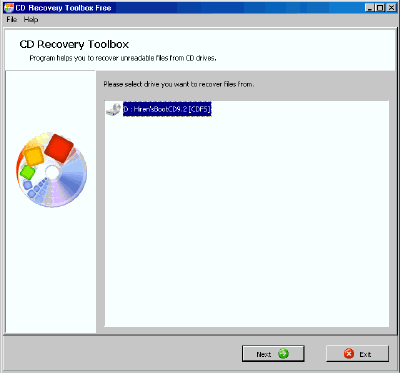 Apart From any other CD/ DVD data Recovery utilities CD Recovery Toolbox is the best out there. This is just because it is free and due to its high data recovery rates. It is just an awesome CD/ DVD data Recovery tool.
After installing CD Recovery Toolbox. Start the program and insert your DVD/CD from which the data is to be recovered. If the DVD/CD has been inserted CD Recovery Toolbox will display the contents of the DVD/CD on it's window. Next you need to select a folder location to save the recovered data from the DVD/CD. On the next step select the Folders and Files you want to be recovered. You can select the entire DVD/CD to recover if you want. But doing this will take a lot of time for the data to be recovered. So it would be wise to select only the important folders and files that you need the most. Now press the Save button Finally.
CD Recovery Toolbox can recover data from different media such as CD, DVD, HD DVD, Blu-Ray, etc.
 CD Check is another great utility that will recover the data from Damaged/ Unreadable/Scratched DVD/CD easily. Cd check is made to detect the errors on damaged DVD/CD's and recover them. It checks for the corrupted data on the DVD/CD's and will show the corrupted ones to you. CDCheck is a Shareware Utility but it is free for Personal Use. Get a free license for CDCheck from here.
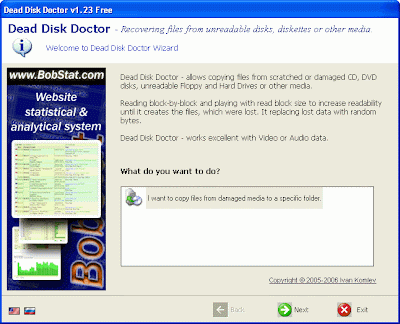 Dead Disk Doctor is from Russia. This tool will try to read the damaged part of DVD/CD and will try to recover it if it can't read the data the software will automatically replace those portions with random data. Since replacing data DVD/CD with random data could corrupt it, this tool is more useful if you have some DVD/CD or other medias with audio or Video content in it to be Recovered. So you will still be able to recover most parts in the DVD/CD even though small portions may get skipped.
All the 5 Utilities are Free and offers great value for recovering important data from damaged DVD's/CD's.
Monday, July 13, 2009
Copy HTML Links With Firefox
If you ever wrote an article that included a long list of links you know how boring and time consuming it can be to copy the text of the link first, then flip back to the page, copy the URL, and then finally create the link.
The solution for this problem can be found in Firefox extensions that allow you to copy HTML links on the fly; meaning that they enable you to copy simultaneously the link text and HTML, and once you paste it you will already get the HTML code ready to go.
colt.pngThe most used extension for this purpose is called CoLT. Basically you will need to right click on the link you want to copy, move the mouse over “Copy Text Link and Location As,” and then select “HTML Link.”
I have used it for a while, but I don’t link the fact that I need to go through two sets of menus. It adds one unnecessary step to the process.
My favorite extension that does a similar job is called Copy as HTML Link. Here you will need to select the text that you want to be used on the link, right click over it and select “Copy as HTML Link.” Notice that instead of copying an existing hyperlink on the page this extension we create a link with the text you highlighted and with URL of the page you were visiting.
copyhtmllink.jpg
In reality the two extensions could co-exist since the former copies the HTML of existing hyperlinks while the latter creates an HTML code based on the text you select and the URL of the page. Test them and see which one will fit your browsing habits.
The solution for this problem can be found in Firefox extensions that allow you to copy HTML links on the fly; meaning that they enable you to copy simultaneously the link text and HTML, and once you paste it you will already get the HTML code ready to go.
colt.pngThe most used extension for this purpose is called CoLT. Basically you will need to right click on the link you want to copy, move the mouse over “Copy Text Link and Location As,” and then select “HTML Link.”
I have used it for a while, but I don’t link the fact that I need to go through two sets of menus. It adds one unnecessary step to the process.
My favorite extension that does a similar job is called Copy as HTML Link. Here you will need to select the text that you want to be used on the link, right click over it and select “Copy as HTML Link.” Notice that instead of copying an existing hyperlink on the page this extension we create a link with the text you highlighted and with URL of the page you were visiting.
copyhtmllink.jpg
In reality the two extensions could co-exist since the former copies the HTML of existing hyperlinks while the latter creates an HTML code based on the text you select and the URL of the page. Test them and see which one will fit your browsing habits.
Saturday, July 11, 2009
How Journalists Stay Connected (Bloggers Take Note)
During my career, I’ve been on both sides of the Journalism/PR equation. It’s a symbiotic relationship that has traditionally been fraught with both pitfalls and opportunities. When the two sides work in harmony, the relationship can be rewarding. I’ve been on the journalism side of the fence for more than a decade now, and I’ve learned some valuable lessons about how to develop and maintain good relationships with my former mates in the PR department. In recent years, building and maintaining a strong connection to valuable PR assets has become even easier with the advent of social network tools like Twitter and LinkedIn.
Before I delve into how I use social networking to nurture the relationships that yield story ideas and interview contacts, I have to confess that I’ve never been one to pursue a story based solely on the merits of a friendly relationship with a PR person. A cozy relationship isn’t what I’m after; as a journalist, I respect PR people that deliver, keep their promises, and hook me up with the information I need to meet my deadline. I understand there was a time when three-martini lunches resulted in front-page coverage, but that was never my style, even back in the day, when all I had for a contact management system was a Rolodex.
So, how have I developed, maintained, and benefited from my network of contacts?
First, I treat every PR person the way I wanted to be treated when I was in the PR trenches. I know it’s a tough job to pitch reporters while serving the needs and aspirations of a client. Often, the two masters have conflicting needs and interests. That’s the root cause of a lot of problems between journalists and PR folks—I get it.
To keep my relationships with PR people useful and productive, I’ve adopted a networking approach designed to make the most out of what these relationships have to offer. And online social networking is the perfect venue my purposes. For instance, I can use Twitter to follow a number of key PR people in my areas of concentration (i.e., education technology, manufacturing technology, renewable energy, and food processing). The real power of Twitter is its search function. When I’m assigned a feature by one of my editors, I can search the topic on Twitter and immediately find a conversation that speaks to the story I’m pursuing. If it’s a story topic with legs, I’ll become a Twitter follower of the experts or PR people on the issue. When I make contact with those experts or PR people, I’ll then “friend” them on LinkedIn to strengthen and nurture that connection.
As a journalist, I use LinkedIn to an even greater extent than Twitter. Often, when I’ve been assigned a feature, I will go to the “Answers” section of LinkedIn and post a question asking for expert contacts on the subject I’m covering. Using this technique, I’ve been connected to experts and PR people that I would have never found using a traditional Google search. It has also helped me to establish long-term, highly beneficial relationships with PR people and others who continue to supply me with story ideas and contacts.
Using Twitter and LinkedIn, I’ve been able to actively pursue relationships with PR people and topic experts. To develop relationships that I might not uncover through social networking, I launched a blog that is designed to inform PR people and other interested parties about my journalism activities. On the blog, I posts alerts about recently published articles. I also comment on how journalists can use social networking to build their relationships with editors, publishers, industry experts, and PR people. I know that savvy PR people will use my blog as a tool to discover the topics I’m interested in and reach out to me with story ideas and suggestions. The blog is another doorway through which new, profitable relationships can be developed that will enhance my journalism career.
The Internet has broadened the scope of what is possible for journalists. I’ve embraced the technology and look forward to finding new, innovative ways to connect with people who can help me write the stories that fill the pages of my publishers’ magazines and Web sites.
Tweetmeme Button Increased My Retweests by 100%
The Tweetmeme button reports how many retweets your posts get, and the cool thing is that they have backward compatibility. In other words, I was able to calculate how many retweets my posts were getting, on average, before I had the button installed.
I simply installed the button and went on to count the number of retweets on the latest 20 posts. It turned out that, without the button, my posts were getting on average 26.9 retweets.
After that I waited for 20 more posts to be published, and counted the retweets again. It turns out that, with the button, each of my posts was getting on average 51.8 retweets. In other words, the addition of the Tweetmeme button below the posts increased the number of retweets by almost 100%. You can cross check this result yourself by browsing through the posts on my archives.
Not bad huh? If you want to give the button a try, you can download the WordPress plugin to add it here.
Now I am planning to move the button from the bottom left to the top left of my posts, to see if this will also positively affect the number of retweets. Within 20 more posts we will know, so stay tuned.
Thursday, July 9, 2009
Firefox 3 Review - It’s Simply Amazing
Firefox 3 has arrived and my behavior has changed right from the instance I have switched to Firefox 3. The sudden gush of excitement has made me more happier and I am starting to become more smart in the web world. Is it due to Firefox or something else, I am not sure but one thing which I am sure about is you must and must switch to Firefox 3. Its rare that you come across something very perfect, efficient, creative and beautiful all at the same time, and this time its in the form of Firefox 3. Beauty has certainly met brains in the new version.
Without letting any of my excitement down, I am going to tell you the amazing things that I found in Firefox 3. First of all the startup time of Firefox 3 is much quicker than Firefox 2. The next things which strikes as it starts is its appearance. I have fallen in love with the two little glowy buttons for back and forward browsing. 


Now We Have The Awesomebar!
The show stealer of the entire futuristic parade of Firefox 3 is its address bar or awesomebar. Its awesome in its true sense. You wouldn’t even have imagined that the lame old address bar can sometimes mean so much than just typing in URL’s. With this revolutionary address bar in Firefox 3 you would soon forget having to remember URL’s.
Yes, you don’t have to remember those lengthy creepy URL’s once you have Firefox 3 in your control. The address bar is so smart it can detect the correct URL when you just type in the actual keywords which had made you open that page. For example, if you had opened a page which contained some information on “Firefox” and later on forgot which URL you had opened, just type in “Firefox” and the page URL would prompt up the list with “Firefox” highlighted. Incredible I must say.

You may be guessing already what makes it so smart? Well, from the past, Firefox has been keeping a store of the web page titles by caching in the URL’s you were opening up. But until the launch of Firefox 3, it was never used to good effect. Now in the new version, it makes a really good use of these title’s. Its a high probability that you would remember something in the page titles if you want to get back to the page you had visited earlier. So, its likely that instead of putting in the actual URL you would be putting the right keywords, and the right keywords are always present in? You guessed it right, in the page title of the page. This trick, has really transformed the address bar into Awesomebar.
The Amazing Download Manager
It was a lenghty wait and now the wait has been sweetly fulfilled by the Firefox 3 team. The much needed pause and resume feature of the download bar actually works in Firefox 3. Earlier, even though this feature was present, it lacked proper functioning and so you couldn’t rely on your resuming the downloads. But this time works. Yeehaa! With the amazing Download Manager you can again visit the page from where you had downloaded the file and also if you haven’t cleared the list you can search for the downloads.

I would expect the next version to have multiple simultaneous connections so that I would not have to use Flashget. 
The Amazing Addon Manager
This is another show stealer after the Awesomebar. Remember those good old times when you wanted to add you favorite addons, you first searched Google or the addon’s page of Mozilla. Then you used to go to the page to read about the addon, see the ratings and then actually download the addon. Zip forward to Firefox 3, the good old days will become more better with the new addon manager. It’s got an inbuilt search engine which displays not only the relevant addon’s based on the search criteria but also the description which you would have seen on the actual addon page and it also shows you the rating! It was unbelievable for me when I saw this in action.

To be true the when I said that my behavior has changed from the instance I downloaded Firefox 3, the feature which made it happen, was the Addon Manager. I have stopped being lazy in searching addons, and since I have an embedded search option, I have started to download addons like crazy. Its driving me mad. In just a day I have found so many amazing addon’s that had made my web browsing experience much much richer. I would put up a post soon for telling you about the addons which are my favorites.
Firefox 3 is a browser that you must not wait for downloading. The record of 8 million Firefox 3 downloads in just 24 hours is enough to prove this. The world is waiting for more. So without wasting much time, grab it here fast!
10 Most Amazing Google Search Tricks
Searching on Google can be a magical experience once you find out how to make your search queries efficient. By making efficient I mean using some tricks or the cheat sheet provided by Google itself to quickly find what you actually require. Having being hooked onto Google for a long time now, I have come across some amazing search tricks which can change the way you look at Google today.

In this article I will list down the search tricks which I use quite frequently. Be it finding time, meanings or watching the cricket score, searching PDF’s, with Google as the search engine life cannot be more simpler. Here are the 10 most amazing Google Search tricks:
1. Different Types of Files at your will
How many times would you have asked for materials (PDF, PPT, DOC) for a particular topic from a friend? Its almost everyday that we might have the necessity to ask them either for knowledge, preparing a presentation, white-paper or for case studies. Such times it mostly difficult to look out what to exactly search for because most of the times you don’t know about the topic at hand. But this petty keyword unleashes its lethal power at such occasions.
Let’s say I want to implement a case study on SOA which means I have to read a lot of information for SOA. So I just have to find materials which might have already been uploaded on the web in the form of PDF’s, DOC’s or PPT’s. These materials can be easily obtained by doing a search for:
- PDF - service oriented architecture filetype:pdf
- PPT - service oriented architecture filetype:ppt
- DOC - service oriented architecture filetype:doc
2. Scholarly Search
If you want some authenticity of the materials then it would be better to find the materials from educational institutes or universities. For this use the Google scholar search. But suppose you don’t like to switch to Google scholar search you can add the same query with an additional parameter to the normal Google search box,
3. Meanings of any word in an instant
Now you do not have to carry a dictionary or install a dictionary software just for the purpose of finding out a meaning of a word. With the wealth of information in Google’s hands, its a piece of cake to find out the meaning of the word. Just use the define: keyword. The meaning would of course be displayed but also a set of other links which might have an alternative definition are also given out with the link to read more about it.
You would argue here that, a dicitionary gives out more information than this. But what about words that don’t actually fall within the vocabulary. Suppose you want to know what SOA (Service Oriented Architecture) is then you would have no choice. Google Search comes to your rescue in this case,
- Abbreviations - define: SOA
- Jargons - define: Web 2.0
- SMS language - define: LOL
4. Find the time of any location
Many of us might be probably working for client which are based at different locations. And communication has to be carried out frequently carried out in such cases. But before a communication you have to know which time zone the location is falling into otherwise you would be causing a disturbance.
I have seen people installing time zone software for showing the time of the location they would be calling to. But with Google at your hands you don’t have to install any software. It would be just simple to use a query for finding the current time such as,
psst….look closely the time on the little clock graphic. It also shows the perfect time!
5. Weather at your fingertips
I had been to GOA for a Christmas vacation in the last week of December. But I made a mistake of not finding out the temperature of GOA before leaving. Had I known that it is hot even in the winter I would not have made the mistake of carrying additional luggage consisting of blankets and jackets.
If you are thinking to visit a place it is useful to know what the temperature of the place is before hand, it can make efficient packing. Google helps you here too. Just use this query without asking anybody or waiting for the news to make a weather report. I wish I had thought of this!
6. Google does live commentary too!
Indians are cricket fanatics. But its amusing to see the organizations here trying to put together tactics to devoid cricket lovers from wasting time to watch the cricket scores instead of doing their work. What I think they fail to understand is that by blocking the live cricket scoring sites they are actually making the employees more curios and provoking them to hunt for proxy networks or listen to the radio or chat with their friends elsewhere.
Jokes apart, you actually don’t need proxy networks to view the live cricket scores if you at least have access to Google. If you want to find the latest info about all the cricket matches then just type,
But if you want to find out only about a particular match then use only the names of the two playing nations,
Remember that the scorecard will come only when the play is going on.
7. Calculate with your browser
Every OS has a calculator inbuilt but when the browser is the thing which is constantly open whey bother to open up a calculator. Open Google and straight away type your mathematical expression. You can go all the way from basic arithmetic to trigonometrical expressions. This is simply amazing stuff accomplished by Google.
8. Compare your currency with others
Now that the dollar is declining, the rest of the world must be busy trying to check the impact of the dollar on their currencies. But first of all one must know how much a particular currency amounts to when cashed in another currency. Google’s inbuilt currency converter just does this.
9. Keep track of the stocks
With the booming stock market it is very important to track the stocks on a day to day basis. Putting a stock ticker in the search box is the most obvious thing you would think of. But it is not always you would remember the stock ticker, you should add the keyword “stocks:” to the company name.
The best part of the obtained result is that it provides a chart which shows the trend in the company’s stock along with important statistics.
Note: Currently the results are restricted to the companies listed in the US stock markets.
10. Wanna find some faces?
This is most interesting trick. You might be needing images for various occasions and searching for images is the most difficult thing because what we expect might not be possibly mapped to a query. But Google has a parameter in place for images in situations we need an image which describes a face.
Suppose I search for the term “happy” then the Google results page displays smileys. But I would like to use images of happy people. Even if I choose the term as “happy face” the results don’t show images which contain people. For this there is a parameter “imgtype” which you can use with the URL. For this put in the URL as follows:
There are many more variations which can be bought about with the above tricks thus making your search experience not only enriching but also exciting. If I have missed any tricks of common usage, feel free to mention it.
Update 1: Google keeps on experimenting new ways of searching. If you liked the above tricks then don’t miss out my article which mentions how to use the new search experiments introduced by Google. Believe me, they are brilliant!
Update 2 : Search for your favorite movie information with Google and enjoy it even more. Have fun with the 5 Most Fantastic Movie Search Tricks With Google.
Update 3 : Why not carry out the search for exactly what we are looking for? Get excited for trying out 5 Most Exciting Search Tricks with Google Operators
Load Time Analyzer for Firefox
This is a very useful Firefox extension for web developers, designers and bloggers. We all know that speed is a key component of usability, and that the loading time of your website will make the difference between people actually navigating it or just skipping it altogether.
Load Time Analyzer is a Firefox extension created by Google that displays the number of events that are processed by a certain website and how long it takes to load them all. The load time displayed will obviously be influenced by your Internet connection, nonetheless it can provide a good indicator of the site speed.
The most interesting part of this extension are the detailed graphs that it outputs for every single site. On the graphs you will be able to see what objects are creating bottlenecks, how many external requests the site has, what plugins or scripts are placing requests and so on.
Tuesday, July 7, 2009
Using Your Blog as a Job Search Tool
A prominent blogger recently proclaimed that any professional who considers himself to be a top performer in his field has a blog. So if you don’t have a blog, you must not be a top performer. With more and more employers buying into that statement, the establishment and maintenance of a blog is becoming as important a part of the job search process as is having a clean resume or nailing your interviews. By establishing and maintaining a blog you:
- Set yourself apart from other job seekers
- Show your expertise in a niche field
- Show you are keeping up with the times and are able to display your understanding of the happenings in your industry
- Establish yourself as a source of information, not just a name on paper
- Attract others with the same interests as you, allowing you to grow your professional network
So now that you’ve established a blog, what are the key dos and don’ts to ensure your blog will help you land that dream job?
DOs
1. Include links to your up-to-date resume in multiple formats – Word, PDF and HTML. This helps you to be found on the internet and more likely to be contacted should somebody reading your blog have a job opportunity in mind for you.
2. Include links to your social networks – Twitter, Facebook, and LinkedIn. Make sure these links are on the front page and visible to your readers. This shows your reader base that you’re tapped into the community they’re also a part which helps them develop a sense of comfort with you.
3. Let your readers inside your head and be absolutely genuine. Discuss problems and case studies related to your profession and solve them by providing a step by step approach. Discuss and comment on the latest happenings related to your profession. Talk about admirable companies and professionals related to your market.
4. Give insight into your personal life. Discuss stories and include pictures of your family, friends, pets, just make sure to keep the pictures and personal content PG (ok maybe PG-13 but definitely not R). Nowadays companies like to hire people they feel comfortable with and who has a life outside of work. The more interesting you are, the more likely an employer will want you to be a part of their team.
5. Keep it politically correct. A good rule of thumb is to keep your blog grandma or business dinner table friendly. If you wouldn’t be proud to have your grandma read it or say it at a business dinner table, better be safe and don’t post it.
6. Keep an updated blogroll. These sites should be relevant to your profession. Include a separate category for personal interests.
7. Stay active in commenting. If someone makes a comment on your blog, answer them. This way you are able to have interaction with your readers.
8. Keep a regular update schedule. If time allows post daily or every other day.
DON’Ts
1. Bad mouth, rant or complain about previous employers.
2. Promote your blog if it’s not up to date.
3. Discuss religion, politics or sex – follow all dinner table rules.
4. Post inappropriate photos.
5. Make it look too corporate with ads. You’re not a sports star you don’t need a sponsor .
6. Discuss issues specific to your current employer. Most employers wouldn’t like it.
7. Ramble on in your posts – keep them short, sweet and to the point.
KeePass Password Manager
Online forums, FTP applications, e-mail accounts, social bookmarking sites, Wordpress and the list goes on. All those places require a different user name and password, and keeping track of them all might become a cumbersome task on the long run. The solution for this problem is a password manager where you can store all your passwords behind encrypted protection. KeePass is probably the best free software that you will find across the Internet. I have been using it for past 6 months and now its just part of my daily activities, every time I create a new account somewhere I drop a new entry there. If you have a growing list of passwords you will probably want to check it out.
 The solution for this problem is a password manager where you can store all your passwords behind encrypted protection. KeePass is probably the best free software that you will find across the Internet. I have been using it for past 6 months and now its just part of my daily activities, every time I create a new account somewhere I drop a new entry there. If you have a growing list of passwords you will probably want to check it out.
Saturday, July 4, 2009
How to clean DVD and CD discs (tips 2)
A few handy tips on how best to clean your collections of CD's and DVD's:
» If dust particles are sticking to the CD surface, use a piece of soft cloth to wipe off the dust. To hold the CD, insert a finger or thumb inside the center hole of the CD or handle it by the edges but never touch the shiny surface.
» If the DVD surface feels sticky or greasy, mix some baby shampoo in lukewarm water and use cotton or soft cloth to gently rub the CD surface with this solution. Make sure the CD is completely dry (no water drops) before putting it back in the jewel case.
» If there are fingerprint marks on the CD surface, dip a soft cloth in Isopropyl Alcohol/Ethanol/Methanol and gently wipe the surface. Never use a petroleum based solvent like Acetone as that will permanently damage the CD surface.
» When none of the above alcohol based products are available in the local market, use a bottle of Mineral water to clean the dirty CD surface. Normal tap water has higher concentration of salts that may leave white marks on the CD surface.
» Always wipe the disc surface in a non-radial back-and-forth motion (from the center hole to the outer edge). Don't follow the concentric circles while cleaning.
If you enjoy this artical you can comment me. thank you!
» If dust particles are sticking to the CD surface, use a piece of soft cloth to wipe off the dust. To hold the CD, insert a finger or thumb inside the center hole of the CD or handle it by the edges but never touch the shiny surface.
» If the DVD surface feels sticky or greasy, mix some baby shampoo in lukewarm water and use cotton or soft cloth to gently rub the CD surface with this solution. Make sure the CD is completely dry (no water drops) before putting it back in the jewel case.
» If there are fingerprint marks on the CD surface, dip a soft cloth in Isopropyl Alcohol/Ethanol/Methanol and gently wipe the surface. Never use a petroleum based solvent like Acetone as that will permanently damage the CD surface.
» When none of the above alcohol based products are available in the local market, use a bottle of Mineral water to clean the dirty CD surface. Normal tap water has higher concentration of salts that may leave white marks on the CD surface.
» Always wipe the disc surface in a non-radial back-and-forth motion (from the center hole to the outer edge). Don't follow the concentric circles while cleaning.
If you enjoy this artical you can comment me. thank you!
Wednesday, July 1, 2009
How to Fix Your Scratched CDs/DVDs with Toothpaste
 One of the worst things that can happen to any type of optical disc, whether we're talking about CDs, DVDs or Blu-ray discs, it for it to get scratched. And by “scratched” I'm not referring to a tiny, minuscule groove, but rather about some serious damage, which renders your disc unreadable and the important information stored onto it unrecoverable. Well, what is there to do? Lose your precious data or do something about it?
Well, if you're determined to recover the information you've got stored on the respective disc, there are some solutions available, some more complicated (and expensive), while others are pretty simple and straightforward. However, since this is a guide targeting mostly people who don't really feel that comfortable around a computer or its accessories, we'll try to keep it as simple as possible.
Applying the toothpaste
Enlarge picture
But before going any deeper into this issue, let's take a quick look at the source of the problem. So, as some of you might know, the rear side of any CD or DVD is in fact a protective plastic layer. The actual data is stored in binary format on the metallic layer underneath, and is accessed by an optical drive's laser beam.
However, if there are scratches on the surface of the protective layer, the respective beam will not be able to accurately read the data, and hence errors (more or less serious ones) will occur. Which means that, in order to recover the data, you'll have to mend (or re-polish) the protective plastic layer.
Spreading the toothpaste onto the surface of the disc
Enlarge picture
As mentioned above, there are several ways to do this, some of which we'll cover in an article later on, in our Tips and Tricks area. What we'll talk about now is the simplest possible solution, available to pretty much anyone: toothpaste. Yeah, that's right, the stuff that cleans your teeth can actually also clean away the scratches on the disc.
There are several ways in which you can do this, but what we did was to put some toothpaste on the optical disc (actually, half the disc, in order to notice the difference between “before” and “after” applying this procedure) and then spread it gently and evenly over the surface of the disc with the finger. Then, we took a piece of cloth (cotton cloth, non-abrasive and quite smooth) and then rubbed it gently, but firmly, one very small area at a time, putting some more pressure on the areas where the biggest scratches were located. We continued this process for five minutes or so.
Rubbing the CD with the cleaning cloth - gently
Enlarge picture
After taking care of each scratched area, we washed the disc and then dried it with paper towel (not pictured here, but we promise it was paper, which is less scratchy than a normal towel). The result? Well, the biggest scratches were gone, but a few minor ones remained, and several new (yet superficial ones) appeared.
The quality in the disc's behavior was quite visible. Initially, it took around 20 to 30 seconds for the CD-ROM drive to read the scratch CD and load its contents. After applying the toothpaste treatment, the time went down to 10 to 15 seconds.
After the process is completed
P.S. It worked for us, but we can't guarantee the fact that this will work for you, so please, don't go scratching your perfectly fine CDs or DVDs just to test this method. We wouldn't want you to lose any precious data. However, if you do have a badly-scratched CD, go ahead, fix it!
How to Run PlayStation 2 (PS2) Games on Your PC with PCSX2
There has always been a gap between computer gamers and console gamers. Generally because of the impossibility of a console gamer to play computer games or a PC gamer to play console–only games. Luckily for us, some people just don’t understand when to quit and keep on trying to create a bridge between consoles and computers as far as gaming is concerned.
Those people are the ones behind console emulators for the PC allowing PC gamers to play titles that appeared in a console-only format. This is how emulators such as Chankast for the Sega Dreamcast, Dolphin GameCube emulator, ePSXe PlayStation One emulator and many more appeared. Next generation consoles, however, seemed to be impossible to emulate on a modern computer mainly because their architecture is pretty different from that of a computer. Although it is said that console manufacturers have created emulators, there are no real facts confirming these speculations.
There are numerous teams working on Xbox360 and Nintendo Wii emulators, and one has just succeeded in making the first emulator to play PlayStation 2 video games. Starting with version 0.9.6, PCSX2 can play most console games on your computer at acceptable speeds. I will continue by showing you how to configure your PCSX2 emulator. Let’s start with the basics: download the latest version and install it. After completing the installation, double click the short cut created and start configuring your emulator.
The graphics: configuring the graphics is easy. Go to the Graphics section and choose to use the GSdx 890 0.1.14. Plug in and choose these settings: Resolution: Windowed, Renderer: Direct3D10 (Hardware), no Interlacing, texture filtering and an internal resolution of 1024 x 1024. Now, press OK and you have just configured your graphics to play PS2 games at fast frame rates. The emulator should be preconfigured but better safe than sorry, right? In case you don’t have a DX10 compatible video card, Direct3D 9 (Hardware) is always an option.
Those people are the ones behind console emulators for the PC allowing PC gamers to play titles that appeared in a console-only format. This is how emulators such as Chankast for the Sega Dreamcast, Dolphin GameCube emulator, ePSXe PlayStation One emulator and many more appeared. Next generation consoles, however, seemed to be impossible to emulate on a modern computer mainly because their architecture is pretty different from that of a computer. Although it is said that console manufacturers have created emulators, there are no real facts confirming these speculations.
There are numerous teams working on Xbox360 and Nintendo Wii emulators, and one has just succeeded in making the first emulator to play PlayStation 2 video games. Starting with version 0.9.6, PCSX2 can play most console games on your computer at acceptable speeds. I will continue by showing you how to configure your PCSX2 emulator. Let’s start with the basics: download the latest version and install it. After completing the installation, double click the short cut created and start configuring your emulator.
The graphics: configuring the graphics is easy. Go to the Graphics section and choose to use the GSdx 890 0.1.14. Plug in and choose these settings: Resolution: Windowed, Renderer: Direct3D10 (Hardware), no Interlacing, texture filtering and an internal resolution of 1024 x 1024. Now, press OK and you have just configured your graphics to play PS2 games at fast frame rates. The emulator should be preconfigured but better safe than sorry, right? In case you don’t have a DX10 compatible video card, Direct3D 9 (Hardware) is always an option.
Subscribe to:
Posts (Atom)